CCTV & Surveillance
How to View CCTV on Your Phone (Hik-Connect & DMSS Setup Guide)
Step-by-step setup for viewing Hikvision (Hik-Connect) and Dahua (DMSS) CCTV on your phone: cloud access, QR codes, sharing, data use and common errors.
By Giga Team Solutions · · 8 min read
Most Hikvision and Dahua recorders sold in Kenya can be viewed on a phone without a static IP address or port forwarding. Hikvision uses the Hik-Connect app and Dahua uses DMSS. Both connect through the manufacturer's cloud (P2P) service, so the recorder only needs a working internet connection and your phone only needs data. This guide covers the setup on the recorder, adding it to the app, sharing it safely with family or staff, keeping data use down on Safaricom or Airtel bundles, and fixing the errors people run into most often.
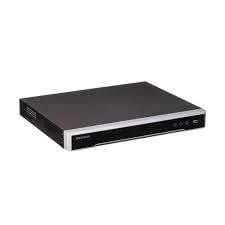
Before you start, you need the recorder cabled to a LAN port on your router (most recorders have no Wi-Fi), the recorder's admin password, a monitor and mouse on the recorder for the first setup, and the app installed from the Google Play Store or Apple App Store rather than an APK forwarded on WhatsApp. The logo on the recorder tells you which brand you have; our Hikvision vs Dahua comparison covers the wider differences. Hikvision NVRs such as our 16-channel Hikvision NVR (KSh 26,000) work with Hik-Connect.
Hikvision: setting up Hik-Connect
Step 1: Enable the cloud service on the NVR or DVR
- On the recorder, open the network settings. Depending on the firmware, the option is under Configuration > Network > Platform Access or Network > Advanced > Hik-Connect.
- Tick Enable and accept the service terms.
- Set a verification code using letters and numbers. Write it down, because the app will ask for it.
- Apply, wait a minute, and check that the status reads Online. If it stays offline, go to the troubleshooting table below.
Step 2: Add the recorder in the app
- Open Hik-Connect, register with your phone number or email, and log in.
- Tap + and choose Scan QR Code.
- Scan the QR code shown on the Platform Access screen, or the sticker on the recorder.
- Enter the verification code from Step 1. The recorder appears in your device list with its cameras.
Hik-Partner Pro is Hikvision's app for installers. As the owner, use Hik-Connect.
Dahua: setting up DMSS
Step 1: Enable P2P on the recorder
- On the recorder, open Main Menu > Network > P2P. On some firmware it sits inside the system or network settings instead.
- Tick Enable and apply. The status should change to Online, and a QR code carrying the device serial number appears on screen.
Step 2: Add the recorder in DMSS
- Open DMSS, create an account and log in.
- Tap +, choose Scan QR code, and scan the code on the P2P screen or the recorder's label.
- Name the device, then enter the recorder's username (usually admin) and its password.
- Save. The channels load and you can open live view.
Note the difference: Hik-Connect asks for the verification code, while DMSS asks for the recorder login. Mixing the two up is one of the most common setup mistakes.
User permissions and sharing with family
Do not give the admin password to everyone in the house or every supervisor in the shop: anyone with admin rights can delete recordings or reset the device. Instead:
- Share from the app. Hik-Connect and DMSS both have a device-sharing option. The other person creates their own account and you share the device to it. You can usually choose which cameras they see and whether they get playback, and remove access later without changing any password.
- Create limited users on the recorder. In user management, add a user or operator account with live view and playback only. This suits a guard house or a reception monitor.
If cameras cover a workplace or areas where the public walk, who can view the footage is also a data protection question. Our CCTV law in Kenya guide explains the ODPC position in plain language.
Keeping data use down on mobile bundles
How much data live view uses depends on the camera resolution, frame rate, compression (H.264 or H.265) and how much movement is in the scene, so no single figure applies to every system. What you control is which stream the phone pulls.
Every recorder keeps a main stream (full resolution, used for recording) and a sub-stream (lower resolution and bitrate). In the app, the SD or Fluent option uses the sub-stream; HD uses the main stream. To make bundles last:
- Leave the app on SD or Fluent for everyday checks, and switch to HD only when you need to read a number plate or see a face.
- On the recorder, set the sub-stream to a modest resolution and frame rate. A lower sub-stream bitrate directly lowers what each minute of viewing costs.
- Watch one camera at a time rather than a full grid on mobile data, and do long playback reviews on Wi-Fi.
A slow upload where the recorder sits will feel slow in the app, however good your phone's signal. If you depend on remote viewing during KPLC outages, the recorder and router need backup power. Our UPS guide for CCTV and networks covers sizing, and a 650VA UPS (KSh 8,000) is a common choice for a recorder and router.
Common errors and how to fix them
| Problem | Likely cause | What to check |
|---|---|---|
| Device offline in the app | Recorder has no internet, or the cloud service is disabled | Network cable and router; cloud or P2P status on the recorder; router has power |
| Status stays offline after enabling | Wrong gateway or DNS on the recorder | Set the recorder to DHCP, or enter the router's IP as gateway and a working DNS server such as 8.8.8.8 |
| Verification code incorrect (Hik-Connect) | Device password entered instead of the code, or the code was changed | Read or reset the code on the Platform Access screen |
| Wrong username or password (DMSS) | Password changed on the recorder | Edit the device in DMSS and enter the current login |
| Device already added by another account | An installer or previous owner still has it on their account | Ask them to delete it from their app; some firmware also allows unbinding from the recorder menu |
| Some cameras black, others fine | Camera, cable or power fault, not the app | Check those channels on the recorder's own monitor first |
For faults that also show on the recorder, such as video loss or no recording, see our common CCTV problems guide.
Security: passwords and firmware
- Change default and weak passwords. Older recorders shipped with well-known default logins. Use a long, unique password.
- Prefer cloud access to port forwarding. Open router ports expose the recorder directly to the internet. If an installer set up port forwarding years ago and you now use the app, ask whether those rules can be removed.
- Update firmware from the manufacturer's official website or the recorder's online upgrade option. Updates fix security weaknesses. Never use firmware from unknown sources, and do not cut power mid-update.
- Review shared users every few months, and always after staff leave.
Frequently Asked Questions
Do I need a static IP address to view CCTV on my phone?
No. Hik-Connect and DMSS connect through the manufacturer's cloud service, so an ordinary fibre or 4G/5G router connection is enough as long as the recorder is online.
Can I view my cameras when the power goes off?
Only if the recorder, the router and the cameras' power supply are all on backup power. If any of them switches off, the app shows the device or those cameras as offline.
Why does the video keep buffering on my phone?
Usually the site's upload speed is low or the app is pulling the HD main stream. Switch to SD or Fluent, view one camera at a time, and check the internet connection at the recorder.
Can two people view the same cameras at once?
Yes. Share the device from the app to the second person's own account instead of giving them your login. How many people can watch at the same time depends on the recorder and the site's upload speed.
If you would rather have it done for you, we set up remote viewing as part of CCTV installation in Nairobi, and you can contact us about an existing system. Our shop is at White Angle House, Rm 62, Kenneth Matiba Rd, Nairobi CBD (Mon–Sat, 8:00 AM – 6:00 PM), or WhatsApp +254 718 811 661. Delivery is a flat KSh 300 anywhere in Kenya, with cash on delivery.